
Ledger App Not Detecting Device: Connection Troubleshooting
Mart 14, 2026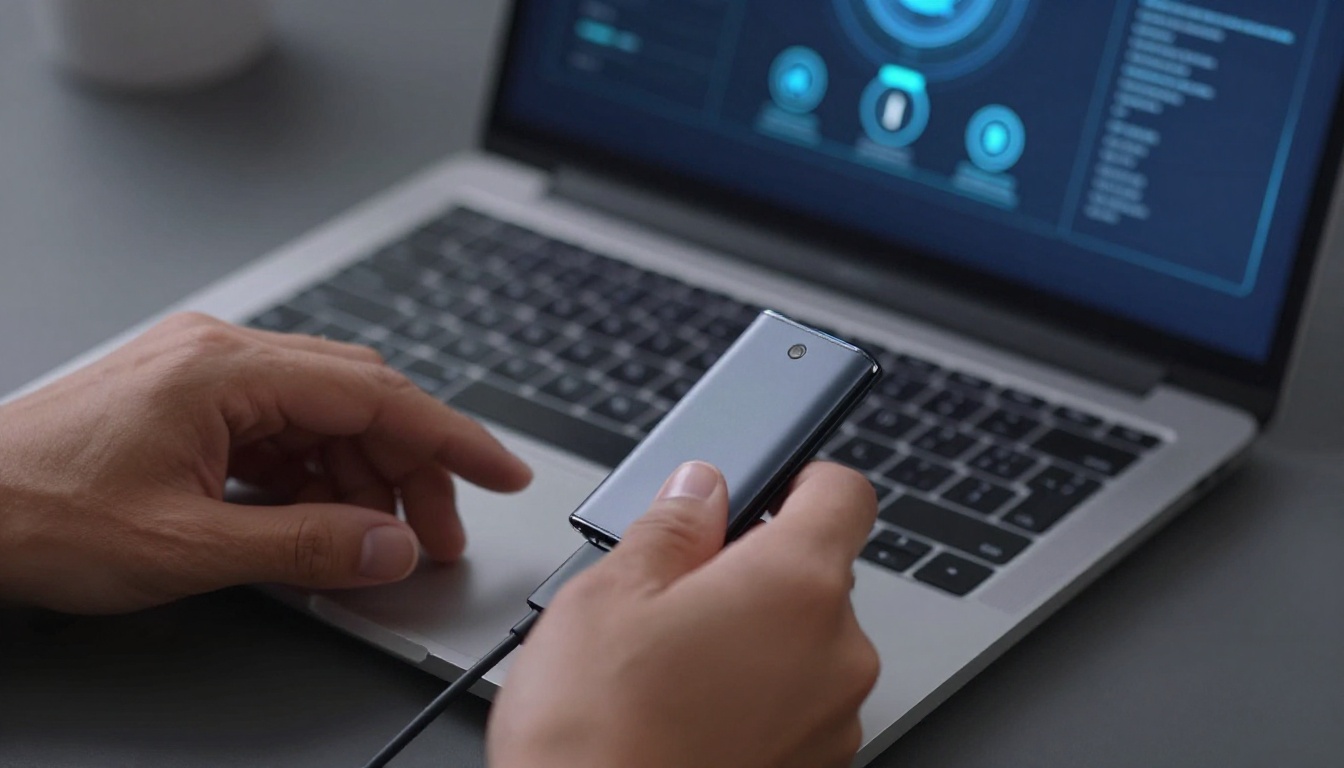
When a Ledger device refuses to connect to your desktop or mobile app, the frustration is immediate. The hardware sits there, screen glowing, but Ledger Live treats it like a ghost. This disconnect between physical confirmation and software recognition stems from a surprisingly fragile communication chain—one that depends on cables, drivers, firmware versions, and even the sequence in which you unlock your device. Understanding why detection fails isn’t just about fixing the problem; it’s about preventing the panic that comes with thinking your crypto is suddenly unreachable. Most connection issues trace back to a handful of predictable failure points, and the good news is that the majority resolve in under five minutes once you know where to look.
Why Your Ledger Device Won’t Connect—And What It Really Means
A failed connection doesn’t mean your funds are at risk. The blockchain still holds your assets, and your private keys remain locked inside the Secure Element chip. What’s broken is the communication bridge between your hardware wallet and the software interface. Think of Ledger Live as a translator—it reads the device’s cryptographic signatures and displays them in a readable format. When that translation fails, the app can’t fetch balances or broadcast transactions, but the underlying security architecture stays intact. The confusion comes from conflating “can’t see my device” with “lost my crypto,” which are entirely separate issues.
The Hardware-Software Handshake: What Happens Behind the Scenes
Every time you plug in a Ledger, a multi-step negotiation occurs. The operating system detects a USB device, assigns it a communication port, and passes control to Ledger Live. The app then sends a query to the hardware, which responds only if the correct crypto app is open and the device is unlocked. This handshake requires alignment across three layers: physical connectivity, driver recognition, and application-level authorization. A failure at any stage causes the entire chain to collapse, leaving the app displaying “No device detected” even when the Nano’s screen is active.
Common Connection Failure Points (USB, Bluetooth, Software Layer)
USB issues range from defective cables to incompatible hubs and damaged ports. A cable that charges a phone might lack the data lines needed for cryptographic communication. Bluetooth introduces distance limits, interference from other devices, and pairing state mismatches on the Nano X. At the software layer, outdated firmware, corrupted cache files, or security programs blocking USB traffic all prevent detection. Windows users frequently encounter driver conflicts, while macOS sometimes revokes USB permissions after system updates. Each layer operates independently, meaning a working cable can still fail if the software environment is misconfigured.
Immediate Diagnostic Checklist: 60-Second Device Detection Test
Before troubleshooting individual components, run through a rapid-fire verification sequence. These checks eliminate ambiguity and identify whether the problem is hardware, software, or user error. Performing them in order prevents wasted effort—there’s no point reinstalling drivers if the device isn’t even powered on.
Physical connection verification steps: Confirm the USB cable is fully seated in both the device and computer port. Look for a loose fit or bent connector pins. If using a Nano X via Bluetooth, ensure the pairing icon appears on the device screen and that your phone’s Bluetooth is active.
Device power and screen status check: The Ledger screen should display the main menu or PIN entry prompt. If the screen is blank, the device isn’t receiving power. Try a different USB port or cable. On the Nano X, check if the battery needs charging by connecting to a power source for ten minutes before attempting to pair.
Ledger Live app running confirmation: Verify the app is fully launched, not minimized or stuck in a loading state. Close and reopen the application. On desktop, check that no other instance is running in the background—multiple processes can conflict and block device access.
Correct app opened on hardware device: Navigate on the Ledger screen to the specific crypto app you need—Bitcoin, Ethereum, Solana, etc. The device must have the app open before Ledger Live can establish a connection. If the app isn’t installed, you’ll need to add it through the My Ledger section, which ironically requires a successful connection first—catch-22 solved by ensuring the device is recognized during initial setup.
Quick Fixes That Solve 80% of Detection Issues
Most connection failures resolve with basic hardware adjustments or simple software toggles. These solutions address the most frequent culprits without requiring technical expertise or system-level changes.
Cable and Port Troubleshooting
USB-C cable quality check: Not all USB cables are created equal. Charging-only cables lack the data wires needed for device communication. Swap the cable with the one included in the Ledger box, or test with a known data-transfer cable from another device. Cables degrade over time, and even slight internal breaks can cause intermittent detection.
Before diving into hardware diagnostics, it’s worth confirming that your software environment is properly configured. Many connection failures stem from outdated app versions or incomplete installation steps rather than physical cable problems. Ensuring you have the latest version through the official ledger live download process can resolve sync issues and compatibility errors that mimic hardware faults. Once you’ve verified the software is current, you can confidently move to testing physical connections with the troubleshooting steps below.
Direct port connection versus hub: USB hubs, especially unpowered ones, often fail to deliver sufficient current for stable communication. Plug the Ledger directly into a motherboard USB port on desktops or a Thunderbolt/USB-C port on laptops. Avoid front-panel ports on desktop towers, which sometimes have weaker power delivery.
Port switching test: Even direct ports fail. Try every available USB port on your machine. On Windows, Device Manager sometimes assigns conflicting drivers to specific ports, and switching forces a fresh detection attempt. If using a USB-C to USB-A adapter, remove it and use a native port when possible.
Device Unlock and App Selection
PIN entry requirement: Ledger Live cannot communicate with a locked device. Enter your PIN on the hardware wallet before launching the desktop or mobile app. The device must remain unlocked throughout the connection process—if the screen auto-locks due to inactivity, unlock it again and retry the connection.
Opening correct crypto app on device: Ledger Live requires the appropriate blockchain app to be active on the hardware. If managing Ethereum assets, navigate to the Ethereum app on the device screen and open it. The app name should display prominently. Trying to connect with the wrong app open—or no app at all—results in detection failure.
App installation verification through My Ledger: First-time users sometimes skip installing crypto apps entirely. Connect the device, unlock it, and navigate to the My Ledger section in Ledger Live. This shows installed apps and allows adding new ones. If the app you need is missing, install it here. Note that older firmware versions may lack support for newer assets, requiring a firmware update before app installation becomes possible.
Ledger Live Software: Installation and Version Verification
Setting up a hardware wallet means nothing if the software connecting to it comes from the wrong source. Downloading from anywhere other than the manufacturer’s verified domain exposes users to cloned interfaces designed to steal recovery phrases. The legitimate application acts as a bridge between the physical device and blockchain networks—no typing of seed words, no cloud backups, no shortcuts.
Verification starts before the first click. Checking the URL for “https” and the exact domain spelling prevents landing on a phishing replica. File size, checksum values, and digital signatures confirm the package hasn’t been tampered with during transit. A compromised installer can inject keyloggers or redirect transaction signatures to attacker-controlled addresses.
Once authenticated, the setup process follows a predictable pattern across operating systems. The installer checks for dependencies, requests necessary permissions, and prepares the environment for device pairing. Understanding what each permission does—and why it’s needed—removes the guesswork and builds confidence in the process.
Download Ledger Live Desktop from Official Source Only
The manufacturer hosts the application at ledger.com/ledger-live/download. Typing this URL directly into the browser bar—not clicking ads or search results—ensures arrival at the correct destination. Search engines sometimes display sponsored links to imitation sites that look identical but host malicious files.
Three operating system options appear: Windows, macOS, and Linux. Each button triggers a file transfer matching the platform’s native format. Windows receives an .exe executable around 130 megabytes. macOS gets a .dmg disk image. Linux users download an AppImage file that runs without traditional installation. File size acts as a quick sanity check—anything significantly smaller or larger signals potential corruption or substitution.
Before running the downloaded file, advanced users cross-reference the SHA-256 hash published on the site with the local file’s hash. This cryptographic fingerprint confirms byte-for-byte integrity. While not mandatory for beginners, it represents the gold standard for security-conscious individuals.
Install Ledger Live: Platform-Specific Steps
Windows users locate the .exe file in the Downloads folder and double-click to launch. A User Account Control prompt requests permission to make changes—necessary for driver installation and application registry. Clicking “Yes” proceeds to an installation wizard with minimal configuration options. The process places shortcuts on the desktop and Start menu, then launches automatically upon completion.
macOS installation begins with opening the .dmg file, which mounts as a virtual disk. Dragging the application icon into the Applications folder completes the copy. First launch triggers a security warning since the file originated from the internet. Opening System Preferences, navigating to Security & Privacy, and clicking “Open Anyway” grants permission. Future launches proceed without intervention.
Linux execution requires making the AppImage file executable through terminal commands or file properties. Right-clicking the file, selecting Properties, and enabling “Allow executing file as program” prepares it for launch. The AppImage runs portably without system-wide installation, appealing to users who prefer contained applications. Compatibility spans distributions like Ubuntu 20.04 and Debian-based systems.
Ledger Live Latest Version and Update Protocol
Software versions matter because each release patches vulnerabilities discovered since the previous build. Running outdated versions leaves known security gaps open, even if the hardware device itself remains secure. Updates also expand compatibility with newly launched cryptocurrencies and improve transaction processing efficiency.
The application checks for updates automatically during launch, but manual verification ensures no delays. Staying current doesn’t just add features—it prevents transaction failures caused by protocol changes on blockchain networks. Some networks introduce hard forks or alter transaction formats, requiring corresponding software adjustments.
Checking Your Current Software Version
Opening the application and clicking the settings gear icon reveals the “About” section. The version number displays clearly, formatted as a series of digits separated by periods. Desktop builds currently sit at 2.143.0, while the mobile application reaches 3.103. Comparing this number against the release notes on the manufacturer’s site confirms whether an update exists.
Updating to Latest Version (Desktop 2.143.0 / Mobile 3.103)
When an update becomes available, a notification appears within the interface. Clicking “Update Now” downloads the new version in the background. The application closes automatically, installs the update, and relaunches with improved functionality. Firmware updates for the physical device appear separately in the “My Ledger” section after connecting hardware via USB.
Mobile updates follow standard app store protocols. iOS users visit the App Store, search for the application, and tap “Update” if available. Android users access Google Play Store with identical steps. Automatic updates can be enabled in store settings, though manual control allows users to read changelogs before accepting changes. Version 2.41.3 introduced Solana staking, while recent iterations added Polygon NFT support and aggregated balance views across multiple networks.
Operating System Compatibility and Driver Issues
Hardware wallets communicate with computers through specific protocols that require matching software and drivers. Incompatibility between operating system versions and the application causes connection failures, sync errors, or incomplete transaction signing. Meeting minimum specifications prevents these frustrations and ensures smooth operation.
RAM, storage space, and processor capabilities determine whether the interface runs without lag. Insufficient resources lead to crashes during synchronization or freezing when processing multiple blockchain queries simultaneously. A stable internet connection completes the requirements list since the application pulls live data from network nodes to display accurate balances.
Ledger Live Windows Mac Linux System Requirements
Windows compatibility begins at version 10, though some documentation mentions version 8 as the absolute floor. Modern systems running Windows 11 encounter no obstacles. The application performs adequately with 2 gigabytes of RAM but runs more smoothly with 4 GB allocated. A dual-core processor handles the interface responsively, while faster CPUs improve sync speed for wallets containing dozens of accounts. Storage needs remain modest at 200-300 MB for the application itself, plus additional space for blockchain cache files.
macOS support extends back to Sierra (10.12), though High Sierra (10.13) and newer versions receive priority optimization. Apple Silicon Macs (M1/M2/M3 chips) run the application through Rosetta 2 translation without performance penalties. Older Intel-based Macs work equally well. The same RAM and processor recommendations apply across hardware generations.
Linux flexibility accommodates major distributions including Ubuntu 20.04 and Debian derivatives. The AppImage format sidesteps dependency conflicts that plague traditional package managers. Users on Arch, Fedora, or other distributions report successful operation with minor USB permission adjustments. The portability of AppImage files means the same download works across different Linux flavors without recompilation.
Windows-Specific Driver Installation
Windows sometimes fails to recognize the hardware wallet upon first connection, displaying “Unknown Device” in Device Manager. This happens when generic USB drivers lack the specific communication protocols the device uses. Resolving this requires administrative privileges to install manufacturer-supplied drivers.
Opening Device Manager reveals connected hardware under “Universal Serial Bus controllers” or “Other devices.” Right-clicking the entry and selecting “Update driver” launches a wizard. Choosing “Search automatically for drivers” attempts online retrieval, but manually pointing to the driver folder within the installed application directory ensures the correct version loads. After installation, the device appears properly labeled and functional.
Some antivirus programs or Windows Defender configurations block USB communication, interpreting hardware wallet protocols as suspicious behavior. Temporarily disabling protection during initial setup allows connection establishment. Creating permanent exceptions for the application executable prevents future interference. USB cables with data transmission capability matter—charging-only cables lack the necessary wiring, causing phantom connection issues that confuse troubleshooting efforts.